Showing posts with label tips. Show all posts

The Ultimate Penetration Testing Command Cheat Sheet for Linux

Have you ever learned a new command, application, or tool, only to find that one week later you’re struggling to remember the exact syntax? Sure, Linux command line tools have help features, but they can be pretty cumbersome. That’s why cheat sheets exist, folks, and they can be a real life saver. Well, maybe a cheat sheet won’t save your life, but it can certainly save you oodles of time, headaches, frustration, and invalid commands.
That’s why I’ve compiled some of the most popular and frequently used penetration testing commands in three sections: general Linux usage, NMAP scanning, and Metasploit. It should be noted that this list isn’t comprehensive by any means, but will serve as a good reference for some of the most commonly used commands to help put you on the fast track to penetration testing in a Linux environment.
Even though experienced Linux users feel comfortable working with these commands on a nearly daily basis, there are some that slip through the cracks and become forgotten. Even some of the basic hotkeys and shortcuts, which can really help save a lot of time at the command prompt, are forgotten by experienced Linux users from time to time. Also, if you just want to initiate some network scans on your home network, I’ve included NMAP references as well.
Most of these commands will become internalized if you’ve had a chance to work with them for a few months. But every once and a while, it’s nice having a reference to rely on. So, let’s start the cheat sheet off with standard Linux BASH shell commands.
Linux BASH Shell Command Reference
BASH Shell Shortcuts and Shorthand:
Knowing your way around the BASH shell is what separates the seasoned Linux veterans from the wannabes and newbies. Though it may seem trivial at first, there are a lot of handy hotkeys that simply working from the shell. Some of them are just for convenience, some are practical, and some are functional.
The bottom line is you need to know how to save yourself the hassle of re-entering and extremely long command that is nearly identical to the last command you ran, and you had better darn well know how to terminate an active shell process. Use the following hotkeys within the Linux shell:
  • ctrl + c – terminate the currently running command
  • ctrl + r – search the current terminal session’s command history
  • ctrl + a – go to the start of line (useful if you need to correct a typo at the beginning of a very long command)
  • ctrl + e – go the the end of line
  • ctrl + z – sleep program
  • !! – reissues the last command that was run
  • ![command] (i.e. !ping) – reissues the last command starting with the supplied parameters, which is the last ping command in this example
  • Up arrow – search through the cached history of previously run commands
  • Down arrow – sort through the history of used commands to the most recent command
  • Tab – the tab key is useful for auto-completing file and directory names within the current working directory, which save you the trouble of having to type them out
Basic Shell Commands:
  • mount – displays mounted media and file systems
  • uptime – displays how long the system has been active
  • clear – if there is too much information printed to the current terminal screen, you can wipe it all clean with the clear command
  • date – displays the time and date that is configured within the operating system
  • whoami – displays the current active user in the shell
  • su root – prompts you for a root password to login and run commands with root privileges
  • pwd – prints your current working directory, which is your current location in the file system
  • ls – this is the list command, which prints the files and directories within your current working directory
  • ls -l – this option is known as a “long listing,” and shows detailed information about the files and directories in your current working directory
  • ls -la – this command will show you a long listing, and the -a option shows you all files; by default, hidden files that start with the “.” character are omitted
  • cd [directory] – the cd command is useful for navigating the Linux files system; simply perform an ls command to see directories accessible in your current working directory
  • cd ../ – this command will set you one level higher in the current working directory tree
  • [command] | grep [parameters] (i.e. ls | grep myfile.txt) – piping command output to grep and supplying it with parameters will filter the output based on your criteria
  • ps aux – displays a list of running processes; the output is long, so it’s best to pipe it to less, more, or search through it with a tool like grep
  • kill [process_number] – kills a process based on it’s process ID identified with the ps auxcommand
Network Interface and IP Commands:
  • ifconfig – the same as the ipconfig on Windows systems; this command will display interface information, such as MAC address, IPv4/IPv6 addresses, interface status, transmitted and received data, and so on
  • ifconfig [interface] down (i.e. ifconfig eth0 down) – shuts down an interface, such as a wireless, Ethernet, or tunnel interface
  • ifconfig [interface] up (i.e. ifconfig eth0 up) – enables an interface that has been shut down; taking an interface down and then up again (sometimes called bouncing an interface) can be a useful troubleshooting or reset procedure
  • route – displays the current routing table, including the default route
Port and Service Commands:
In days of yore, most Linux systems used a tool called ipchains. However, these days, ipchains is obsolete, defunct, deprecated, and antiquated. Instead, you want to use the netstat command. Use the following commands to check and edit port settings on your Linux machine:
  • netstat -l – shows ports that are in a listening state
  • netstat -a – shows all ports (sometimes called sockets) that are in use
  • netstat -u – shows all UDP connections and ports that are open
  • netstat -t – shows all TCP connections and ports that are open
  • netstat -a | grep [protocol] (i.e. netstat -a | grep http) – searchs all open connections and ports for any that contain the characters “http”
NMAP Command Reference
In this section we’re going to be going over all of the most common NMAP commands. I’ll start with a brief reference and explanation of each command, and then delve into greater details and explain the most important command options.
It’s also worth noting that NMAP commands are incredibly versatile. Not only is NMAP a widely used shell program on a variety of Linux distributions, but the data it generates can be “plugged in” to other programs as input. For instance, within the Metasploit framework (discussed in the next section), you can actually build a database of hosts and targets using NMAP scans.
The syntax for NMAP commands within Metasploit varies only slightly, and the options are the same. So what you learn in this section can be applied to other penetration testing tools. Use the following data as a reference for the NMAP help guide, which shows you most of the options and correct syntax:
Usage: nmap [Scan Type(s)] [Options] {target specification}
TARGET SPECIFICATION:
Can pass hostnames, IP addresses, networks, etc.
Ex: scanme.nmap.org, microsoft.com/24, 192.168.0.1; 10.0.0-255.1-254
-iL <inputfilename>: Input from list of hosts/networks
-iR <num hosts>: Choose random targets
–exclude <host1[,host2][,host3],…>: Exclude hosts/networks
–excludefile <exclude_file>: Exclude list from file
HOST DISCOVERY:
-sL: List Scan – simply list targets to scan
-sn: Ping Scan – disable port scan
-Pn: Treat all hosts as online — skip host discovery
-PS/PA/PU/PY[portlist]: TCP SYN/ACK, UDP or SCTP discovery to given ports
-PE/PP/PM: ICMP echo, timestamp, and netmask request discovery probes
-PO[protocol list]: IP Protocol Ping
-n/-R: Never do DNS resolution/Always resolve [default: sometimes]
–dns-servers <serv1[,serv2],…>: Specify custom DNS servers
–system-dns: Use OS’s DNS resolver
–traceroute: Trace hop path to each host
SCAN TECHNIQUES:
-sS/sT/sA/sW/sM: TCP SYN/Connect()/ACK/Window/Maimon scans
-sU: UDP Scan
-sN/sF/sX: TCP Null, FIN, and Xmas scans
–scanflags <flags>: Customize TCP scan flags
-sI <zombie host[:probeport]>: Idle scan
-sY/sZ: SCTP INIT/COOKIE-ECHO scans
-sO: IP protocol scan
-b <FTP relay host>: FTP bounce scan
PORT SPECIFICATION AND SCAN ORDER:
-p <port ranges>: Only scan specified ports
Ex: -p22; -p1-65535; -p U:53,111,137,T:21-25,80,139,8080,S:9
-F: Fast mode – Scan fewer ports than the default scan
-r: Scan ports consecutively – don’t randomize
–top-ports <number>: Scan <number> most common ports
–port-ratio <ratio>: Scan ports more common than <ratio>
SERVICE/VERSION DETECTION:
-sV: Probe open ports to determine service/version info
–version-intensity <level>: Set from 0 (light) to 9 (try all probes)
–version-light: Limit to most likely probes (intensity 2)
–version-all: Try every single probe (intensity 9)
–version-trace: Show detailed version scan activity (for debugging)
OS DETECTION:
-O: Enable OS detection
–osscan-limit: Limit OS detection to promising targets
–osscan-guess: Guess OS more aggressively
There are many more options in the NMAP syntax, but this is more than enough to get you started. Now, let’s take a look at some of the most common command references that will enable you to scan networks and hosts:
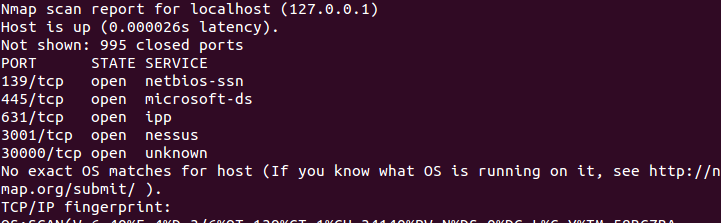
Host and Subnet Target Syntax:
  • nmap [host] (i.e. nmap 10.10.10.1) – tells NMAP to target a single IP address
  • nmap [domain] (i.e. nmap www.myserver.com) – tells NMAP to target a specific host, but that host needs to be resolvable with DNS
  • nmap [range] (i.e. nmap 10.10.10.1-5) – specifies a range of IP addresses for NMAP to target
  • nmap [subnet] (i.e. nmap 10.10.10.0/24) – tells NMAP to scan an entire subnet with a variable length subnet mask
  • nmap -iL [import_host_list.txt] (i.e. nmap -iL myhostlist.txt) – allows you to import a list of hosts from other sources
Port Scanning Target Syntax:
  • nmap -p 80 10.10.10.1 – scans a host to see if it is accepting connections on a specific port (port 80 in this case)
  • nmap -p 80-100 10.10.10.1 – scans a host to see if it is accepting connections on a range of ports (port 80 in this case)
  • nmap -F 10.10.10.1 – the -F options stands for “fast,” and will scan one hundrede of the most commonly used ports on a host
  • nmap -p- 10.10.10.1 – scans all ports on a host, but is rather slow
Port Scanning Options Syntax:
  • nmap -sT 10.10.10.1 – initiates a scan using TCP connections
  • nmap -sU 10.10.10.1 – initiates a scan using UDP connections
  • nmap -Pn 10.10.10.1 – initiates a port scan using selected ports, and omits the active port discovery process
  • nmap -sS 10.10.10.1 – initiates a TCP SYN scan
Verbosity
I also wanted to add a section concerning the verbose option, which can be added to any of the previous commands. The problem with some NMAP scans is that they can seem to take forever, and the terminal won’t show you what’s happening behind the scenes by default. That can make waiting for your scan to finish nearly unbearable.
However, you can easily tell NMAP to print it’s completion rate with various tasks to the terminal. Not only is verbosity useful for keeping an eye on your NMAP scan and tracking its progress, but it’s also useful for seeing how different hosts and targets react to your scan. With verbosity enabled, you’ll be able to see error messages or hosts that didn’t reply to probes, which helps troubleshoot why the host isn’t responding.
The verbose option in NMAP syntax is simply -v. You can add the -v flag to almost any NMAP scan. For instance, if I wanted to track the progress of an NMAP scan on my local network, I would issue the following command:
  • nmap -v -Pn 10.10.10.0/24
This command will run through a host and port scan for all 254 IP addresses on the 10.10.10.0/24 subnet. Furthermore, it will print information in the prompt regarding which address it is currently probing, giving you and accurate idea of how much more time is left in the total scan.
Identifying Hosts’ Operating System and Active Services
If you’re using NMAP from a Metasploit perspective, it would be highly useful to know what version, service pack, services, and operating system a host is using to probe for vulnerabilities. Fortunately, NMAP comes equipped with tools to scan a remote host’s operating system fingerprint and active services. Use the following commands:
  • nmap -sV 10.10.10.1 – basic service scanning and detection
  • nmap -sV –version-intensity [0-9] 10.10.10.1 – sometimes a probe won’t be able to identify a host’s operating system, so you can turn up the probing intensity with a value between 0 and 9. 9 is the most intense scan, which will try all available NMAP probes, but will also take longer
  • nmap -sA 10.10.10.1 – NMAP will scan the specified host to identify its active services and operating system
NMAP Output
As mentioned previously, NMAP can be piped into various types of output format and imported into other applications. It’s possible to save the output in formats such as text files, XML, grep-readable formats for fast and easy searching, and a general “all format” type. Instead of simply printing output to a terminal or copying/pasting it into a text file, you can use the following commands to manipulate how the output is stored.
  • Nmap -oX MyOutputFile.xml 10.10.10.1 – save output in an XML format
  • Nmap -oG MyOutputFile.txt 10.10.10.1 – save the default output to a text file
  • Nmap -oN MyOutputFile.txt 10.10.10.1 – save output in a GREP readable format (which can be accessed, searched, and filtered with the grep command)
  • Nmap -oA MyOutputFile 10.10.10.1 – save output in all formats
Metasploit Command Reference
Core Metasploit Commands:
Metasploit is always changing, growing, and evolving. With each new vulnerability that’s discovered and added to the Metasploit framework, there are a myriad of new patches and operating systems as a response. As such, you need to know how to search through all of the exploits, vulnerabilities, and modules. The following is a cheat sheet of the core Metasploit commands:
  • msfupdate – runs the automatic update function, and looks for any new exploits and vulnerabilities; note that this is run from the standard command line
  • msfconsole – this command is how to enter the Metasploit environment and receive the msf >prompt in the terminal
  • show exploits – displays all exploits in the terminal (should be piped to another command or filtered for better results)
  • show payloads – prints all currently known payloads to the terminal (should be piped or searched with a command like grep)
  • show auxiliary – displays all auxiliary modules that are contained in the Metasploit framework
  • help – shows the main help page for Metasploit
  • search [name] – searches through the exploits and modules for any labeled with strings matching the supplied name
  • info – displays information about a certain module or exploit
  • use [name] – loads a module or exploit
  • lhost [IP_address] – this should be set to your interface’s local IP address, especially if you’re currently on the same subnet or network as the target
  • rhost [IP_address] – use this command to set the IP address(es) of the target(s) you wish to target with the exploit
  • show options – displays all of a modules or exploits parameters that can be set; essentially a sub-help menu for an individual module that lists all of its commands
  • show targets – displays which targets and systems can be targeted for a given module
  • check – checks to see if the currently set target is vulnerable to the attack or exploit
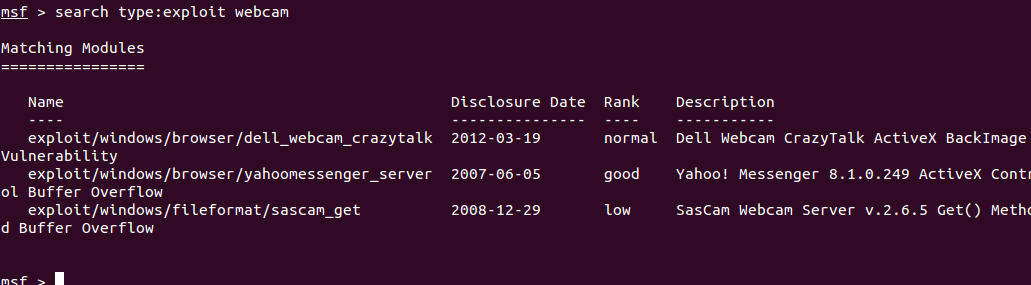
Database Commands:
I had mentioned earlier that NMAP commands can be used in the Metasploit database. Metasploit comes with a lot of handy tools to build lists of hosts and run commands against those targets using NMAP commands as follows:
  • db_nmap [nmap_command_syntax] – the basic syntax of NMAP commands within Metasploit
  • db_nmap -v -Pn 10.10.10.0/24 – scans the 10.10.10.0/24 subnet with a basic port scan in verbose mode, and adds those hosts to the database
  • db_export – exports your current database to a file and location of your choosing
  • db_import – imports a database from another source
  • db_status – displays the status of the database; if everything is in working order, this command should return a status of “connected
  • hosts – prints a list of all the discovered hosts in the database, which could have been discovered from NMAP commands
  • hosts -a [ip_address] – adds an IP address, range, or subnet to the hosts database list
  • hosts -d [ip_address] – deletes an IP address, range, or subnet from the hosts database list
  • hosts -u – prints all of the hosts that are known to be up
Cheat Sheet Conclusion
Lastly, I would like to point out that this cheat sheet shouldn’t serve as a shortcut to learning an entirely new operating system or penetration testing skills. If you think you can breeze through by reading a cheat sheet, think again. If you’ve never worked from the terminal before, you’re going to have a tough time using any commands in Linux.
If that’s the case for you, I’d recommend starting with some basing Linux tutorials, learning the Linux file system, and how to run basic shell commands. You may even want to dig into the course materials for the Comptia Linux+ exam. Having said that, this should be a solid reference for the most common commands (some of which you may have forgotten).
Share:

Geting account password through brute forcing

What is brute forcing ?

In layman language, brute forcing means using a tool that picks passwords from a word list and tries them one by one until one works.

How to make a word list ?

A word list can consist of all possible combination's of letter,numbers,special characters. It can have some common or default passwords. You can download the word list generators or goggle the word-lists for brute-forcing and configure them according to yourself.

How fruitful attack can be ?

If we are try all possible combination's of letter,numbers,special characters, theoretically chances of success are 100%. But practically it is not possible to try every combination because it can take a lot of time. This attack just depends on the time you give,processing power and of course your luck.

Many tools are use for it
hydra is one of them

Step 1

Download THC Hydra from here

Step 2

(a) Make a usename wordlist consisting of some common usernames like this


(b) Get a wordlist of passwords
(c) Copy both wordlists to your hydra folder

Step 3

(a)Open the command prompt and change directory to your hydra folder using cd command.


(b) Type "hydra" without quotes and it will show you the options to use.


(c) Now to start attak,

Type "hydra -L userslist.txt -P passlist.txt xxx.xxx.xxx.xxx ftp" and press enter

where userslist.txt is the list of usernames, passlist.txt is the list of passwords and xxx.xxx.xxx.xxx is the IP address of target, Now it will start cracking

To use a single username instead of wordlist , Replace capital L with small l , like this

Type "hydra -l username -P passlist.txt xxx.xxx.xxx.xxx ftp"

Note : Ftp port must be open.

Warning: I highly recommend you to use a chain of proxies to spoof your identity because proper logs of user's IP addresses who try to connect to ftp server is made on the server. Here is an example of the same.


Countermeasures to protect yourself from this attack:

Use strong passwords
Share:

Keep track of the text that you copied and forgot to paste

You might have sometimes come across some situations where you might have copied a text and then forgot to paste the text onto the destination file , or even you accidentally copied another text without even pasting the previous text on to the file.Well there is a perfect tool for this problem and that is the reason why i wrote this post.Read on..
Well the easy clipboard management tool is called clipcube , that lets you manage your clipboard easily and more effectively. This tool is available from clipcube.wikispaces.com which is a small free and lightweight tool that doesn’t require any kind of installation.
clipcube-hackhow


Once you run the tool , an icon pops up in the system tray and by which you can see all the recent copied text on the tools interface with the date and time of the copy. You can copy any text back to the clipboard using the 2page button which moves the text onto the top of the list.
So here is the download link for the tool and you can have ease of maintaining your clipboard without losing any of the previously copied text.
Check out my tools section for more cool and useful tools for your daily needs.
Share:

List of 40+ High Page Rank Free Do-Follow Forums and Blogs

highQualityDoFollowBacklinksListLink Building is a important part of Search engine optimization.These backlinks will be able to able to rank your page higher and improve your traffic from search engines.But not any backlinks will help you to rank your page higher.
Backlinks specifically from high PR blogs and forums will be able to get you a high page rank for your blog.Do Follow Blogs and forums encourage you to comment on their site by allowing the do follow attribute on their comment section and hence help you to achieve good high PR backlinks.
So here i have listed out 40 blogs and forums that have Do follow attribute to encourage commenting.Try to be active in these pages as frequently as possible to achieve constant good backlinks.
PR 9
http://www.flickr.com/help/forum/en-us/
http://www.addthis.com/forum/index.php
http://www.bibalex.org/a2k/Forum/Topic.aspx
http://quality.mozilla.org/forum
http://www.adjunctnation.com/forums/index.php
Pr 8
http://forum.joomla.org/
http://www.about.com
http://www.campusvirtualsp.org/
PR 7
http://www.bungie.net/Forums/default.aspx
http://www.sitepoint.com/forums/
http://forums.feedburner.com/
http://forums.mysql.com/
http://forums.cnet.com/
http://www.gamespot.com/forums/index.html
http://www.bookforum.com/
Pr 6
Mysql Forum
Deviantart
http://www.currybet.net/
http://www.tvhe.co.nz/
http://bbpress.org/forums/
http://blog.greens.org.nz/
http://forums.amd.com/
http://www.feedforall.com/forum/
http://www.dreamteammoney.com/
http://forum.newsgator.com/
http://www.midasoracle.org/
http://weblogtoolscollection.com/
http://www.zymic.com/forum/
Pr 5
Digital point Forum
http://forums.photobucket.com/
http://sayanythingblog.com/
http://forums.afterdawn.com/
http://www.wickedfire.com/
http://www.v7n.com/forums/
http://www.techsupportforum.com/
http://www.bloggerforum.com/
http://www.daniweb.com/forums/
http://www.bloggertalk.com/
http://forums.worldofwarcraft.com/index.html?sid=1
It might not be possible to stay active in many of forums or blogs.So its better to select about 4-5  key sites your blog is related to and try to stay active in those 4-5 forums or blogs.
Share:

Get suggestions from Google for speeding up your website

site-speed-hackhow-histogramThere are a lot of tools that are available on the internet for free use and also commercial. But sometimes its best to know what is really  expected from Google from your website about your website speed and loading time , if you want to consider good amount of traffic from search engines like Google.
Google ranks the page based on their content as well as their loading speed and lot of other factors that affect the page rank. So it is required to optimize your site based on interactive and attractive designs and at the same time depend on lighter resources for its implementation.

Google-page-Speed-online-hackhow


So here is a great tool from Google labs that gives you a detailed advice for your entered website url and suggests the best required tweaks based on priority on different aspects of the page speed. The tool is called the Google’s Page Speed online tool which will as you for your website url and after clicking the Analyse Performance carries out the analysis to rank you based on different factors of your website page speed.Also gives you advice on making your site faster.
Fell free to check out this awesome tool to get free useful advice to optimize your site.
Share:

5 Best Free tools to Compress Images online

Compressing the image is the basic needs of any blogger who would want to optimize the images on his site to save space space and bandwidth for faster loading time. But what if you suddenly experience a problem with your compression tool or either you dont have the tool or resources to do the compress at your workplace.So here are some of the top 5 best image compression tools that are available online.
change-image-optimize


This was one of the tools that topped the search for image compresses online. this tool compresses , re sizes and optimizes images online.But may even give a optimized image with a larger file size.So be sure to reduce the quality level to get compressed images.
Here is another tool that compresses images online  and has a cleaner interface.Gives you the percentage savings after the image is compressed. Even converts files like GIF to PNG for better compression.


This is another Great tool that features full control over the output of your image. You can opt to set in the compression percentage and the tool will take care of the rest.There are no complex settings and involves just setting up the percentage of compression.

Here the image is compressed to the size lower than the original file given to it . The interface lets you choose multiple files for upload and compression at the same time.The converted file may be in PNG format and you don’t have much control over it.

Lets much control over the image optimization by giving you the options to set color variation,intensity,pixels, border and more.The optimized image may be larger than the original file itself but keeping the same format as original.
Share:

Find out Flight Timings with a click with Google Search

Google recently rolled out a new search feature that allows you to search and find for any particular flight from a source to the destination location, all listed out in order with all the details of the carrier and the expected travel period.
google-flight-feature


This new feature works with
flight [from] [to]
and hit search.It will display the summary of all the scheduled flights listed out in order.This feature was announced on friday on their  Inside Search Blog. The feature seems to work for all major airports and excludes only the smaller and not well known airports.
I tried out this feature myself and worked out pretty neat.With “flight Delhi Bengaluru” or “flight DEL BLR” which gave all the flights destined to bengaluru from delhi in the drop down list.
Well check out this awesome and a handy new feature from google which makes the task of finding the flight timings soo much simpler.Cheers..:)
Share:

30+ Facebook Tips/Tricks and Hacks that you Should Know

Facebook is undoubtedly the king of social networking and with the majority of its users logging in multiple times in a day, to either check out their friends updates or post their own status. With these usage factors in mind, its important to make use of some of the tricks to better your usage and speed up your time Facebook so that you get more time for the life outside Facebook.


So here are some of the cool tricks that will help you in managing your account more easily and also some cool tricks to show off your geeky side.Enjoy.:)
1 How to Download entire Facebook Photo Albums
Tired of copying individual photos of your friends album that he/she shared of your last vacation?..Well here is a time saving and a faster solution called FacePAD,available for Mozilla Firefox browser, allows you to download the entire Facebook album with a single click.
facepad-hackhow


2.How to Schedule your Facebook Status Updates and Messages
What if  you wont be logging into Facebook for a few days as you are going on a vacation or something and you need to post some updates or send messages on a particular day, well sendible makes it easy to schedule your status updates and messages.Although you can use a simpler alternative called LaterBro which is less time consuming than the Sendible.
sendible


3 How to Hide Online Status from Certain people in Chat
This is a basic feature available in Facebook, but not many of them use this as they still don’t know this.Create separate lists of friends and set the status for each list separately.Block-Facebook-Chat


4 How to Friend a person and hide this update
This is an important and useful trick that can be used to friend a person without letting his/her friends getting the update( like your ex ‘s sister or someone..:P)…Here is a quick guide for the trick from Makeuseof  Tutorial.
hide_status-facebook


5 How to add cool symbols to your Facebook Status
You might have seen people posting weird symbols on their status, well you can do that too.Head over to this link or here to find out the various alt codes to use in your status.For more Check out Hongkiat
6 How to show your Facebook status on your WordPress blog
Here is a plugin called StatusPress that lets you view the status updates on a widget in your WordPress blog.Install it and you are good to go.
7 How to turn your Status updates into a cool 3D Word Cloud
This trick requires a Facebook application called Status Analyzer 3D which gets you a list of status updates and turns them into colorful animated word cloud which you can then share with your friends.
facebook-cloud-analyser-hackhow


8 How to Get Status Updates from Anyone around the World
This is kind of  like a trick to exploit the privacy set by the users. Head over to YourOpenBook and you can search anyone’s status by selecting the gender and the keyword or you can even browse the recent searches made.
openbook


9 How to Update Your Facebook Status From Firefox Browser
You can post your Facebook status directly from your Firefox browser using 2 Firefox plugins.Well there seems to thousands of plugins for everything for Firefox and here are the 2 plugins FireStatus or a toolbar Facebook Toolbar .
10 How to Automatically Poke Back your friends who poked you
If you don’t have enough time to poke back every time someone pokes you then try out this Grease Monkey Script called Facebook AutoPoke
11 How to Update your Facebook Status Directly from Gmail
Here is a great gadget called Facebook Gadget from iGoogle that lets you post updates directly from your Gmail.
12 How to Access Gmail Data from Facebook
This is a awesome feature if you often log into Facebook than your Gmail account.Check out a Facebook Application called Fmail that lets you browse your Gmail in Facebook.
13 How to Get Facebook in your Desktop
If you like to stay on your desktop to browse Facebook rather go to your time consuming web browser to start up and load all the tabs and stuff.Check out these tools for easier Facebook access on your desktop using these Facebook desktop clients Facebook Desktop, Scrapboy , Seesmic Desktop, Facebook Sidebar Gadget , Facebooker, Facebook AIR application FaceDesk, Xobni, FBTrayNotify.
14 How to access Facebook Chat on your Desktop
If you just want to chat with your online facebook friends from your desktop, check out the popular tools like Digsby,or Gabtastik, or other options like adium.
digsby-facebook-chat-hackhow


15 How to Create a photo Collage using all your facebook friends pictures.
Want to create a beautiful collage of all your Facebook friends pictures, well head over to Facebook application called Photo Collage, you can then share the result with your friends and have fun.
16 Post Upside Down Status Updates on your Wall
If you have seen friends posting upside down status updates and even you would like to try em, check out this tool called FlipText which provides you with the upside down text to post on your wall.fliptext-hackhow-facebook


17 Get your Facebook Profile as Pirates Page
Change your Facebook Profile language settings to English(Pirate) in the language settings.You will notice hilarious pirate language transformations like , comment -> blabber t’yer mates, whats on your mind -> what be troublin’ ye? and a whole lot more. I Really loved this feature and i still use it cause its a whole lot fun and makes Facebook much more exiting.facebook-pirate-hackhow


18 How to Upload and Share Flickr Photos on Facebook
This is a great tool if you have your albums uploaded in Flickr and wanted to upload them into Facebook. The plugin is called Flickr2Facebook that gets you this job done easily.
19  Update Your Facebook Pages without Using Facebook
There are 2 major services that offer these features Hellotxt and Ping Fm. Although both the services are closely competitive , hellotxt has been the older player than ping Fm and is more convenient to set up and use than ping fm.
pingfm_fb-hack


20 How to Download Videos from Facebook
Facebook has a large vast collection of shared videos and if you want to download them into your hard disk, then use a online tool called DownFacebook.

21 How to Show Only Selected Profile Pictures on your Friends list in your Facebook Profile
Well if you are trying to find the trick to edit your friends list pictures to show up only your particular friends then here is the trick. Click on the edit button(looks like  a pencil) above your friends box,in the “Always show these friends”, select only those friends that you would like to  see in your friends list by others.And you are good to go.


22 How to Post your Blog Posts automatically on your Facebook Page or your  wall
There are 2 most widely used plugins or tools available to automatically onto your Facebook wall.
If you are a WordPress user then check out a plugin called WordBook that lets you automatically post on your wall.
For other blogging platforms, check out another popular tool or a Facebook plugin called Networked Blogs which offers you this feature.An alternative to Networked blogs is RSS Graffiti .

23 How to View Facebook as in Twitter
If you are a big fan of twitter or you either like to have fun with your Facebook interface, then check out this cool hack to change your Facebook into twitter style using a Greasemonkey script from userscripts here.

24 How to Import and add Facebook friends to twitter
Here is a great app that lets you follow the right people who are in your Facebook friends list and follow the on twitter using the Facebook App called  Friend Lynx.

25 How to Check your very  status updates stats or find your very old status
Well the app called Status Statistics that lets you see all your status updates stats and generate a list of your updates along with the graph of your posting times in a day and particular days in a week. So if you had to find your old status update , then this can help you in saving time in going through your history on your wall.

26  How to Update your Facebook Status from Twitter (or update Both simultaneously)
This is another cool app that will help the everyday twitter users to update their Facebook walls at the same time as their tweets.Check out the Twitter App for Facebook that will set your status updates same time as you tweet once the app is in sync with your twitter account.

27 How to do the Worst Profile Trick
This is a simple trick to post a profile id on your wall and when your friends click on it will take them to their own profile..Check this out, here is the trick..Post your status “Worst Profile ever http://facebook.com/profile.php?=73322363″ and its done.


28 How to Access Facebook From Microsoft Outlook
Facebook seems to be accessible from everywhere, and here is a way to access using the Microsoft Outlook. This is often useful in cases where Facebook is banned in college networks , so try out this plugin called FBLook to access  Facebook through Microsoft Outlook.

29 Keyboard Shortcuts to use in Facebook
This shortcuts are less known as people prefer to use their mouse rather than go with these shortcut keys..But just to let you know here they are
Internet Explorer :
Alt-1 – Enter goes to  Home page;
Alt-2- Enter goes to your profile;
Alt-3- Enter lets you view Friend requests;
Alt-M- Enter starts a new message;
Alt-Enter places your cursor in Facebook’s Search box.
Firefox-Same keys but replace Alt with “Alt+ Shift”

30 How to remove Facebook Advertisements
If you don’t want those Facebook ads popping up on your Facebook walls and pages, then use this Grease Monkey Script from UserScripts to clean up those messy ads –>Script link. Another alternative for Firefox users is to use the Firefox plugin called AdBlock Plus
Share your tips or tricks  that you would like to share with us and do let us know by your comments..Cheers..:)
Share:

DISCLAIMER

The information provided on hottechtips.blogspot.com is to be used for educational purposes only. The website creator is in no way responsible for any misuse of the information provided. All of the information in this website is meant to help the reader develop a hacker defense attitude in order to prevent the attacks discussed. In no way should you use the information to cause any kind of damage directly or indirectly. The word “Hack” or “Hacking” on hottechtips.blogspot.com should be regarded as “Ethical Hack” or “Ethical hacking” respectively. You implement the information given at your own risk.